> ## Documentation Index
> Fetch the complete documentation index at: https://docs.parea.ai/llms.txt
> Use this file to discover all available pages before exploring further.
# Deployed Prompts
> Deploy versioned prompts and use them via the SDK.
Take advantage of Parea's version management with deployed prompts. Deploying a prompt makes it available via the SDK.
All prompt parameters are bundled with a deployment, including function call schemas and model parameters.
## Prerequisites
1. First, you'll need a Parea API key. See [Authentication](/api-reference/authentication#parea-api-key) to get started.
2. For any model you want to use with the SDK, set up your [Provider API keys](/api-reference/authentication#provider-api-keys).
## How to deploy a prompt
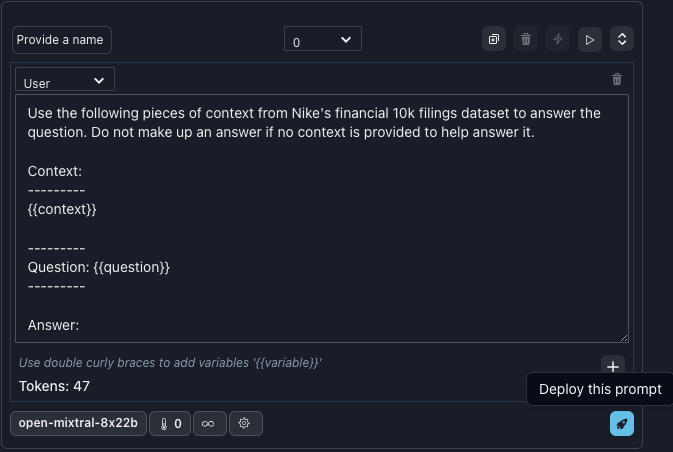
Visit the [Playground](https://app.parea.ai/playground) to view or create prompts. After testing your prompt, you can click the blue rocket icon to deploy it.
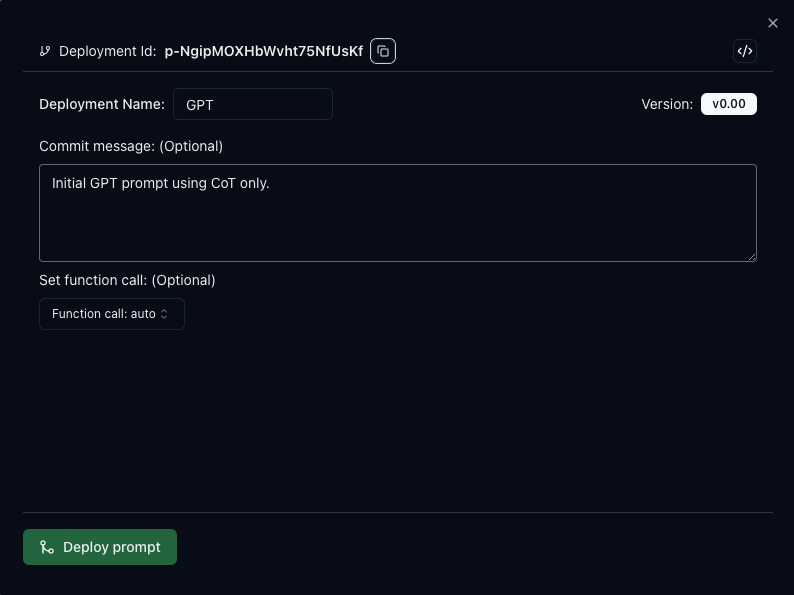
 Afterward, optionally provide a name and commit message for the deployment and copy the deployment ID.
*(Don't worry; you can get the deployment ID later from the [Deployments tab](https://app.parea.ai/deployments))*
Afterward, optionally provide a name and commit message for the deployment and copy the deployment ID.
*(Don't worry; you can get the deployment ID later from the [Deployments tab](https://app.parea.ai/deployments))*
 Prompt deployments are specific to the selected version. In the Playground, when you change a prompt or its
parameters and save it, a new version will automatically be created.
You can bump or rollback deployment versions while maintaining the same deployment ID.
This makes it easy to change your prompt without updating your code.
### Bumping / Revert a deployment
In the Playground, if a prompt has been previously deployed, and you click the rocket icon on a new version,
you will be prompted to confirm whether to bump (if the current version is > than the deployed) or
revert (if the current version is \< than the deployed) the deployment.
*(You could also create an entirely new deployment with a new deployment name and ID.)*
Prompt deployments are specific to the selected version. In the Playground, when you change a prompt or its
parameters and save it, a new version will automatically be created.
You can bump or rollback deployment versions while maintaining the same deployment ID.
This makes it easy to change your prompt without updating your code.
### Bumping / Revert a deployment
In the Playground, if a prompt has been previously deployed, and you click the rocket icon on a new version,
you will be prompted to confirm whether to bump (if the current version is > than the deployed) or
revert (if the current version is \< than the deployed) the deployment.
*(You could also create an entirely new deployment with a new deployment name and ID.)*
 ### A/B test, or QA a prompt
Sometimes you may want to have two branches of the same prompt. One for production, and one for testing.
With the drop-down menu, when bumping or reverting a deployment you can choose which branch should change.
### A/B test, or QA a prompt
Sometimes you may want to have two branches of the same prompt. One for production, and one for testing.
With the drop-down menu, when bumping or reverting a deployment you can choose which branch should change.
 #### Common Workflow:
* Deploy prompt v0 to dev and test using experiments
* After you are happy with performance, deploy the same prompt version as a new prod branch
* Continue to iterate on the dev branch by selectively bumping or reverting that branch only
* When ready, bump the prod branch to the latest and greatest version
## How to use a deployed prompt
You can interact with your deployed prompts in two ways. Use the prompt directly or fetch the prompt's data to use in your code.
### Use deployed prompt
Using the [completion](/api-reference/endpoint/completion) endpoint, you can set the `deployment_id`
parameter and provide the prompt template inputs.
```python python theme={null}
def deployed_critic(argument: str) -> CompletionResponse:
return p.completion(
Completion(
deployment_id="p-PSOwRyIPaQRq4xQW3MbpV",
llm_inputs={"argument": argument},
)
)
```
```typescript typescript theme={null}
const deployedCritic = async (argument: string): Promise => {
return await p.completion({
deployment_id: 'p-PSOwRyIPaQRq4xQW3MbpV',
llm_inputs: { argument: argument },
});
};
```
```curl curl theme={null}
curl --location 'https://parea-ai-backend-us-9ac16cdbc7a7b006.onporter.run/api/parea/v1/completion' \
--header 'Content-Type: application/json' \
--header 'x-api-key: PAREA_API_KEY' \
--data '{
"deployment_id": "p-PSOwRyIPaQRq4xQW3MbpV",
"llm_inputs": {"argument": "some value"}
}'
```
### Fetch deployed prompt
You can fetch the prompt data and utilize it in your code using the
[get deployed prompt](/api-reference/endpoint/deployed-prompt) endpoint.
The response will include the raw prompt and the prompt filled in with the provided inputs and other metadata.
If you fetch a deployed prompt to use with your own LLM API, but still want traced logs associated with the deployment, you can either add
`deployment_id` to the trace decorator, or use `trace_insert({"deployment_id": "p-PSOwRyIPaQRq4xQW3MbspVz"})` in your code.
```python python theme={null}
def get_critic_prompt(argument: str) -> UseDeployedPromptResponse:
return p.get_prompt(
UseDeployedPrompt(
deployment_id="p-PSOwRyIPaQRq4xQW3MbpV",
llm_inputs={"argument": argument}
)
)
```
```typescript typescript theme={null}
export const getCriticPrompt = async (): Promise => {
return await p.getPrompt({
deployment_id: 'p-PSOwRyIPaQRq4xQW3MbpV',
llm_inputs: {
argument: 'Hello World',
},
});
};
```
```curl curl theme={null}
curl --location 'https://parea-ai-backend-us-9ac16cdbc7a7b006.onporter.run/api/parea/v1/deployed-prompt' \
--header 'Content-Type: application/json' \
--header 'x-api-key: PAREA_API_KEY' \
--data '{
"deployment_id": "p-PSOwRyIPaQRq4xQW3MbpV",
"llm_inputs": {"argument": "some value"}
}'
```
```python python theme={null}
response_object = UseDeployedPromptResponse(
deployment_id="p-PSOwRyIPaQRq4xQW3MbpV",
version_number=1.0,
name="critic-2",
functions=[],
function_call=None,
prompt=Prompt(
raw_messages=[
{
"role": "system",
"content": "You are a critic.\n"
"What unresolved questions or criticism do you have "
"after reading the following argument?"
"\nProvide a concise summary of your feedback.",
},
{"role": "system", "content": "Argument: {{argument}}"},
],
messages=[
{
"content": "You are a critic.\n"
"What unresolved questions or criticism do you have "
"after reading the following argument?"
"\nProvide a concise summary of your feedback.",
"role": "system",
},
{"content": "Argument: Hello World", "role": "system"},
],
inputs={"argument": "Hello World"},
),
model="gpt-3.5-turbo-0613",
provider="openai",
model_params={
"temp": 0.0,
"top_p": 1.0,
"max_length": None,
"presence_penalty": 0.0,
"frequency_penalty": 0.0,
},
)
```
```typescript typescript theme={null}
const responseObject = {
deployment_id: 'p-PSOwRyIPaQRq4xQW3MbpV',
version_number: 1,
name: 'critic-2',
functions: [],
function_call: null,
prompt: {
raw_messages: [
{
role: 'system',
content:
'You are a critic.\n' +
'What unresolved questions or criticism do you have after reading the following argument?\n' +
'Provide a concise summary of your feedback.',
},
{ role: 'system', content: 'Argument: {{argument}}' },
],
messages: [
{
content:
'You are a critic.\n' +
'What unresolved questions or criticism do you have after reading the following argument?\n' +
'Provide a concise summary of your feedback.',
role: 'system',
},
{ content: 'Argument: Hello World', role: 'system' },
],
inputs: { argument: 'Hello World' },
},
model: 'gpt-3.5-turbo-0613',
provider: 'openai',
model_params: {
temp: 0,
top_p: 1,
max_length: null,
presence_penalty: 0,
frequency_penalty: 0,
},
};
```
## Deployments Dashboard
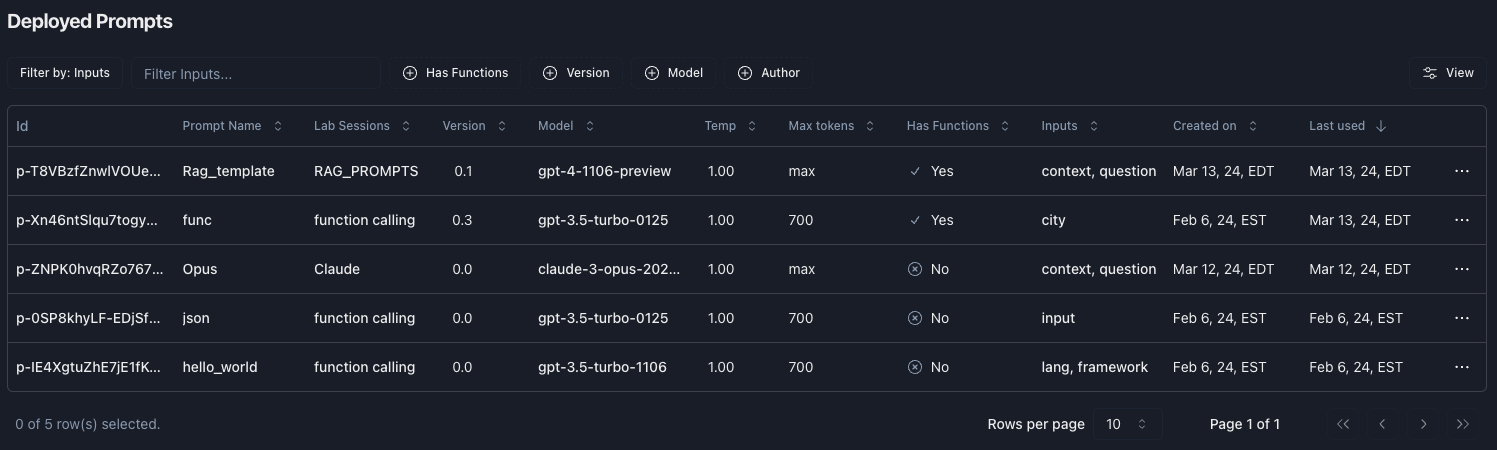
On the [Deployments tab](https://app.parea.ai/deployments) you can get a list of your deployments and associated information. Clicking an item will open a detailed view of your prompt and dashboard specific for that deployment.
#### Common Workflow:
* Deploy prompt v0 to dev and test using experiments
* After you are happy with performance, deploy the same prompt version as a new prod branch
* Continue to iterate on the dev branch by selectively bumping or reverting that branch only
* When ready, bump the prod branch to the latest and greatest version
## How to use a deployed prompt
You can interact with your deployed prompts in two ways. Use the prompt directly or fetch the prompt's data to use in your code.
### Use deployed prompt
Using the [completion](/api-reference/endpoint/completion) endpoint, you can set the `deployment_id`
parameter and provide the prompt template inputs.
```python python theme={null}
def deployed_critic(argument: str) -> CompletionResponse:
return p.completion(
Completion(
deployment_id="p-PSOwRyIPaQRq4xQW3MbpV",
llm_inputs={"argument": argument},
)
)
```
```typescript typescript theme={null}
const deployedCritic = async (argument: string): Promise => {
return await p.completion({
deployment_id: 'p-PSOwRyIPaQRq4xQW3MbpV',
llm_inputs: { argument: argument },
});
};
```
```curl curl theme={null}
curl --location 'https://parea-ai-backend-us-9ac16cdbc7a7b006.onporter.run/api/parea/v1/completion' \
--header 'Content-Type: application/json' \
--header 'x-api-key: PAREA_API_KEY' \
--data '{
"deployment_id": "p-PSOwRyIPaQRq4xQW3MbpV",
"llm_inputs": {"argument": "some value"}
}'
```
### Fetch deployed prompt
You can fetch the prompt data and utilize it in your code using the
[get deployed prompt](/api-reference/endpoint/deployed-prompt) endpoint.
The response will include the raw prompt and the prompt filled in with the provided inputs and other metadata.
If you fetch a deployed prompt to use with your own LLM API, but still want traced logs associated with the deployment, you can either add
`deployment_id` to the trace decorator, or use `trace_insert({"deployment_id": "p-PSOwRyIPaQRq4xQW3MbspVz"})` in your code.
```python python theme={null}
def get_critic_prompt(argument: str) -> UseDeployedPromptResponse:
return p.get_prompt(
UseDeployedPrompt(
deployment_id="p-PSOwRyIPaQRq4xQW3MbpV",
llm_inputs={"argument": argument}
)
)
```
```typescript typescript theme={null}
export const getCriticPrompt = async (): Promise => {
return await p.getPrompt({
deployment_id: 'p-PSOwRyIPaQRq4xQW3MbpV',
llm_inputs: {
argument: 'Hello World',
},
});
};
```
```curl curl theme={null}
curl --location 'https://parea-ai-backend-us-9ac16cdbc7a7b006.onporter.run/api/parea/v1/deployed-prompt' \
--header 'Content-Type: application/json' \
--header 'x-api-key: PAREA_API_KEY' \
--data '{
"deployment_id": "p-PSOwRyIPaQRq4xQW3MbpV",
"llm_inputs": {"argument": "some value"}
}'
```
```python python theme={null}
response_object = UseDeployedPromptResponse(
deployment_id="p-PSOwRyIPaQRq4xQW3MbpV",
version_number=1.0,
name="critic-2",
functions=[],
function_call=None,
prompt=Prompt(
raw_messages=[
{
"role": "system",
"content": "You are a critic.\n"
"What unresolved questions or criticism do you have "
"after reading the following argument?"
"\nProvide a concise summary of your feedback.",
},
{"role": "system", "content": "Argument: {{argument}}"},
],
messages=[
{
"content": "You are a critic.\n"
"What unresolved questions or criticism do you have "
"after reading the following argument?"
"\nProvide a concise summary of your feedback.",
"role": "system",
},
{"content": "Argument: Hello World", "role": "system"},
],
inputs={"argument": "Hello World"},
),
model="gpt-3.5-turbo-0613",
provider="openai",
model_params={
"temp": 0.0,
"top_p": 1.0,
"max_length": None,
"presence_penalty": 0.0,
"frequency_penalty": 0.0,
},
)
```
```typescript typescript theme={null}
const responseObject = {
deployment_id: 'p-PSOwRyIPaQRq4xQW3MbpV',
version_number: 1,
name: 'critic-2',
functions: [],
function_call: null,
prompt: {
raw_messages: [
{
role: 'system',
content:
'You are a critic.\n' +
'What unresolved questions or criticism do you have after reading the following argument?\n' +
'Provide a concise summary of your feedback.',
},
{ role: 'system', content: 'Argument: {{argument}}' },
],
messages: [
{
content:
'You are a critic.\n' +
'What unresolved questions or criticism do you have after reading the following argument?\n' +
'Provide a concise summary of your feedback.',
role: 'system',
},
{ content: 'Argument: Hello World', role: 'system' },
],
inputs: { argument: 'Hello World' },
},
model: 'gpt-3.5-turbo-0613',
provider: 'openai',
model_params: {
temp: 0,
top_p: 1,
max_length: null,
presence_penalty: 0,
frequency_penalty: 0,
},
};
```
## Deployments Dashboard
On the [Deployments tab](https://app.parea.ai/deployments) you can get a list of your deployments and associated information. Clicking an item will open a detailed view of your prompt and dashboard specific for that deployment.
 ### Detailed Deployment View
The detailed deployments page has two tabs. Prompt and Dashboard.
#### Prompt
On the prompt tab you can view all of the prompt's parameters including the messages and any attached functions. You can also access the history of the deployment and bump or revert to a different version.
By clicking 'Edit' you can jump to the Playground and make changes to the prompt and deploy a new version.
### Detailed Deployment View
The detailed deployments page has two tabs. Prompt and Dashboard.
#### Prompt
On the prompt tab you can view all of the prompt's parameters including the messages and any attached functions. You can also access the history of the deployment and bump or revert to a different version.
By clicking 'Edit' you can jump to the Playground and make changes to the prompt and deploy a new version.
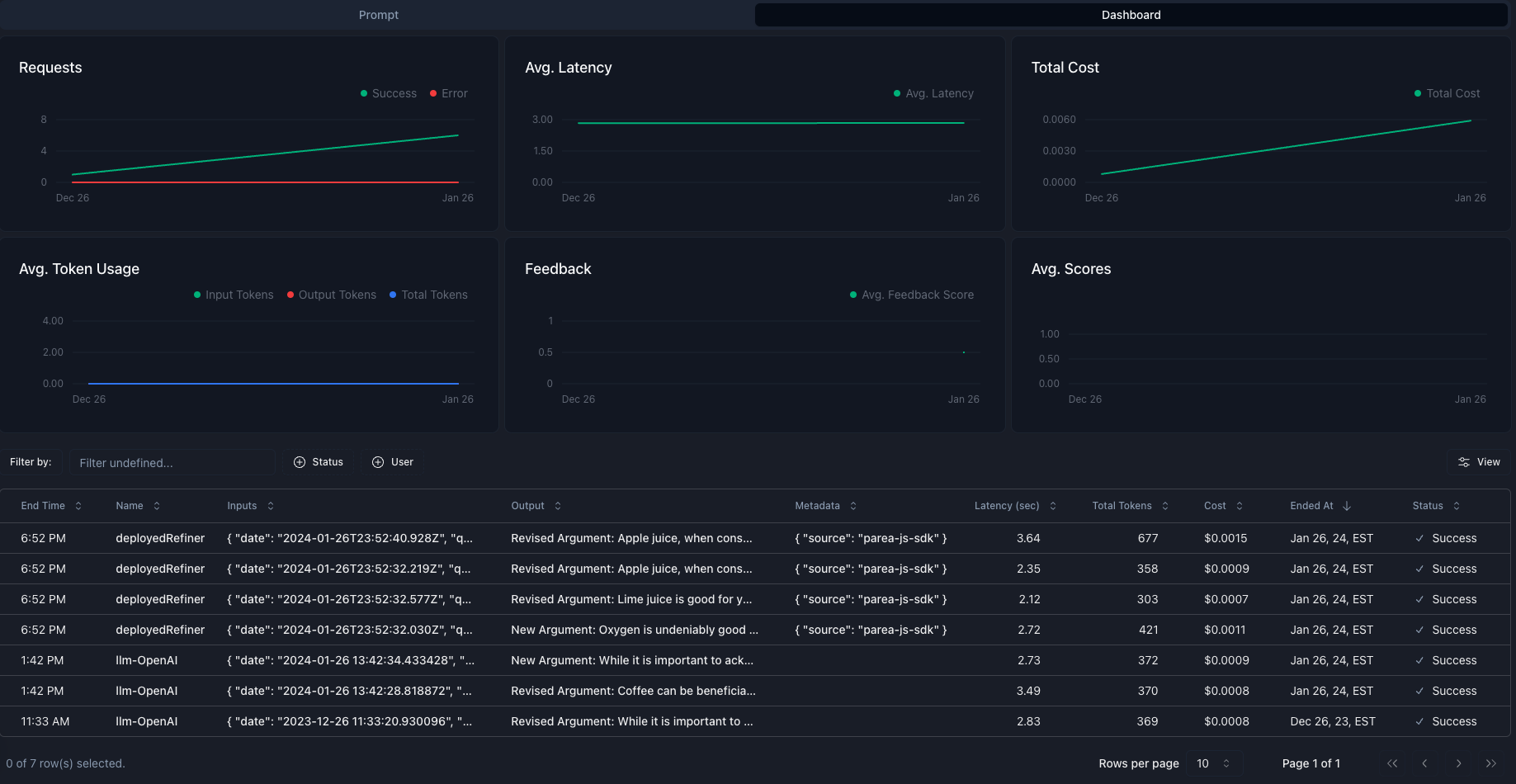
 #### Dashboard
On the dashboard tab you can see the prompt's usage statistics and trace logs. By clicking any trace you can view the [full detailed trace](/observability/overview#trace-details).
#### Dashboard
On the dashboard tab you can see the prompt's usage statistics and trace logs. By clicking any trace you can view the [full detailed trace](/observability/overview#trace-details).
 ## Cookbook examples
* [Python Cookbook](https://github.com/parea-ai/parea-sdk-py/tree/d4d833d79fad4f9c367d38d9a9368153c9471459/cookbook/parea_llm_proxy/deployments)
* [Typescript Cookbook](https://github.com/parea-ai/parea-sdk-ts/blob/58641d0117d935f27818138ff89a107c13034503/cookbook/tracing_with_deployed_prompt.ts)
## Cookbook examples
* [Python Cookbook](https://github.com/parea-ai/parea-sdk-py/tree/d4d833d79fad4f9c367d38d9a9368153c9471459/cookbook/parea_llm_proxy/deployments)
* [Typescript Cookbook](https://github.com/parea-ai/parea-sdk-ts/blob/58641d0117d935f27818138ff89a107c13034503/cookbook/tracing_with_deployed_prompt.ts)