> ## Documentation Index
> Fetch the complete documentation index at: https://docs.parea.ai/llms.txt
> Use this file to discover all available pages before exploring further.
# Compare
> Iterate on and compare prompt versions.
## Getting started
For any model you want to use with the SDK, set up your [Provider API keys](/api-reference/authentication#provider-api-keys).
To compare and test prompts, go to the [Playground](https://app.parea.ai/playground) and select `Create New Session`.
*TLDR: Write your prompt, use `{{}}` to define template variables. Fill in the input values and click `Compare` 🎉!*
Parea's prompt playground is a grid where your prompt templates are the columns, and the template inputs are the rows.
Every time you change prompt parameters and run an inference, a new prompt version is created, making it easy to track
all prompt changes and compare different versions.
## Components of Parea's Playground
The playground allows you to compare multiple prompts against multiple input values.
You can click the Compare button to run all prompts, or optionally run a specific prompt against the inputs (run column),
run all prompts against a specific input (run row), or run only one prompt/input pair (run cell).
### Prompt
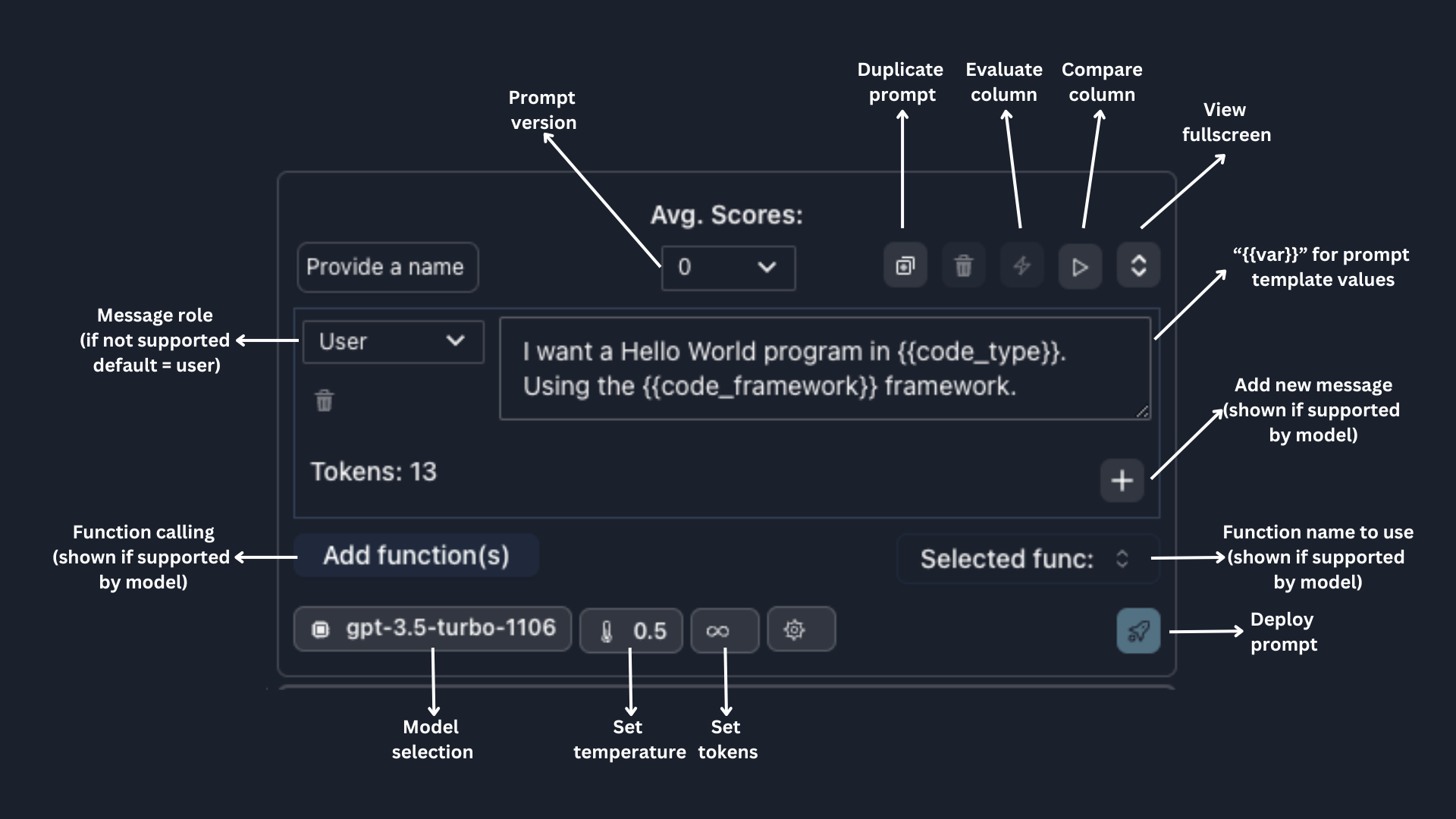 Parea's prompt syntax supports prompt templates with double curly braces `{{}}`.
Template variables will automatically appear as input rows; the values will be interpolated at runtime.
The prompt section is flexible for various LLM models.
For models that support multiple messages and roles, such as OpenAI models, Claude 2.1 (with system message role),
and Anyscale's OSS models, you will be able to add new messages and define the roles; Parea will handle the proper
prompt formatting in the background.
For models that support function calling, such as OpenAI models and Anyscale's Mistral-7B-Instruct, you can
click `Add Function` to either attach an existing function schema or create a new one. Using the selected function,
you can instruct the model to call a specific function, or select `auto` to allow the model to determine whether to use a function.
### Inputs
Parea's prompt syntax supports prompt templates with double curly braces `{{}}`.
Template variables will automatically appear as input rows; the values will be interpolated at runtime.
The prompt section is flexible for various LLM models.
For models that support multiple messages and roles, such as OpenAI models, Claude 2.1 (with system message role),
and Anyscale's OSS models, you will be able to add new messages and define the roles; Parea will handle the proper
prompt formatting in the background.
For models that support function calling, such as OpenAI models and Anyscale's Mistral-7B-Instruct, you can
click `Add Function` to either attach an existing function schema or create a new one. Using the selected function,
you can instruct the model to call a specific function, or select `auto` to allow the model to determine whether to use a function.
### Inputs
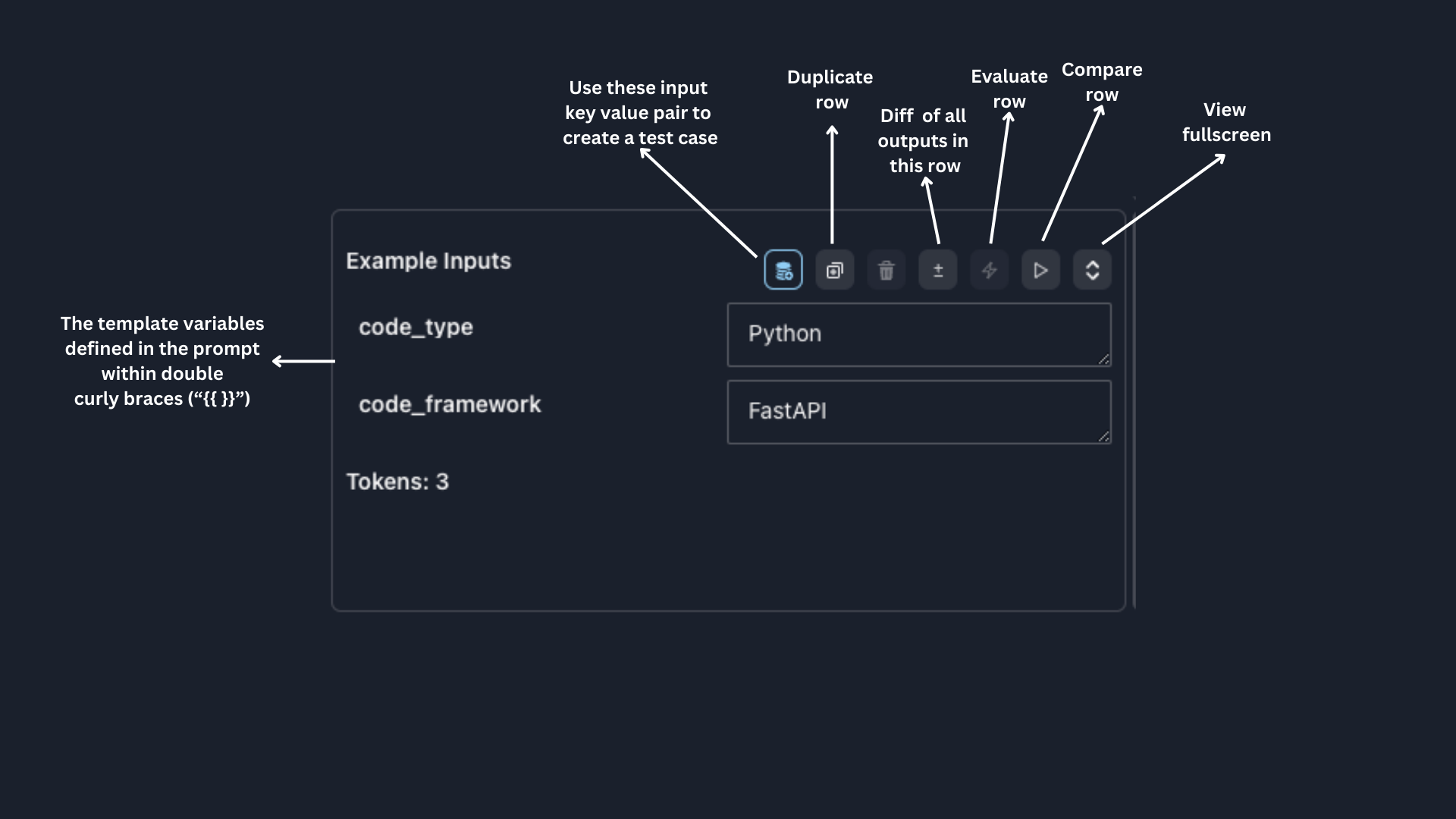 The input section is where you can define the input values for your prompt template.
If you want to re-use a set of values, click the `Add to test collection` button and optionally provide a target value.
### Inference
The input section is where you can define the input values for your prompt template.
If you want to re-use a set of values, click the `Add to test collection` button and optionally provide a target value.
### Inference
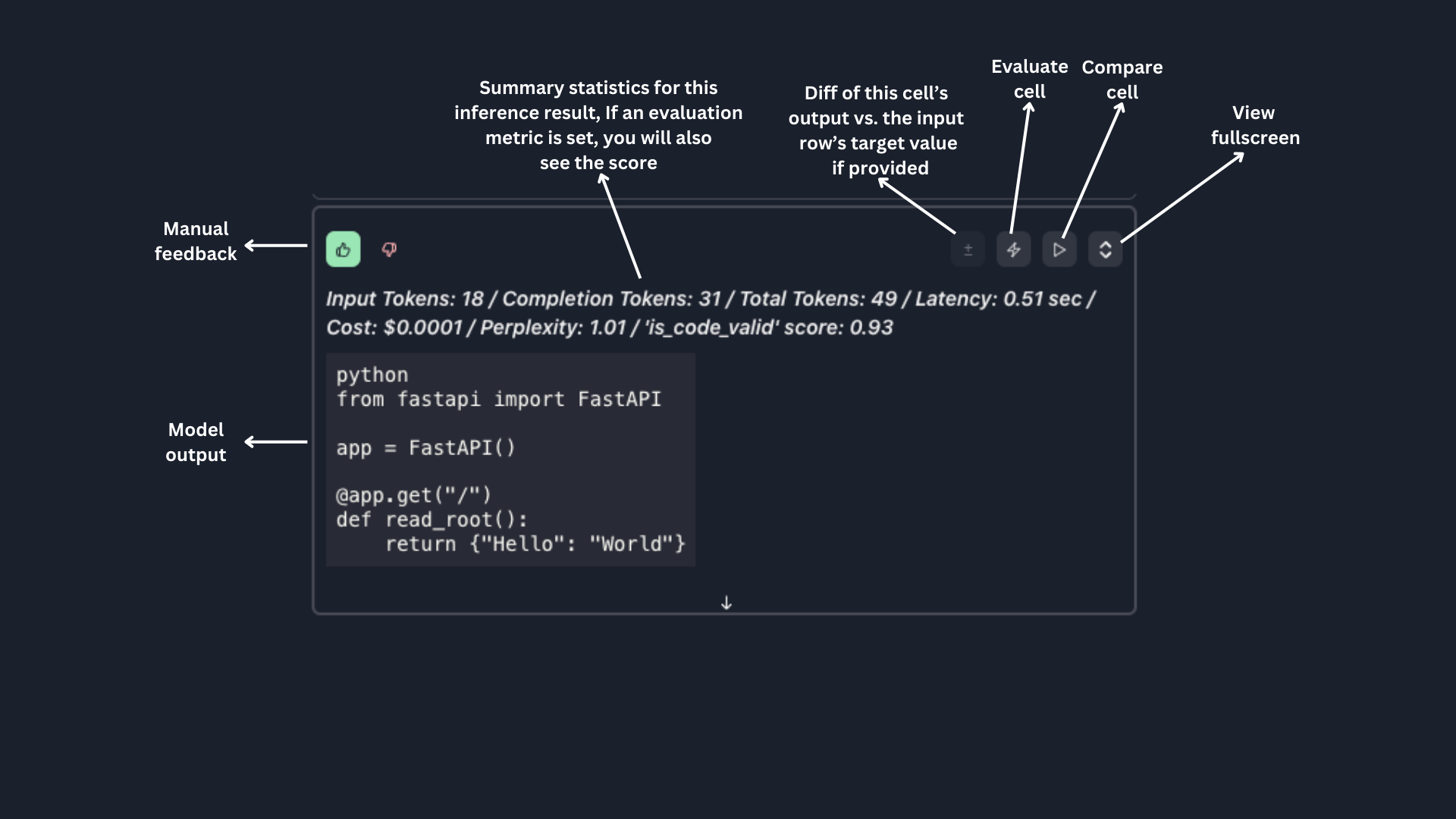 The inference section is where you will see the results of the LLM call from the prompt and row intersection.
No matter what model you use, Parea consistently summarizes the tokens, cost, and latency.
For OpenAI models, the perplexity score is also automatically calculated. You can view the logprob highlighting by turning on the Logprobs toggle.
If you have attached an evaluation metric to your session, the evaluation scores will also be displayed.
You can provide a thumbs up/down rating for the inference result in the top left of the component.
## Supported LLM Inference API Provider
We currently support the following LLM inference API providers in the Playground:
* OpenAI
* Anthropic
* Azure
* Anyscale
* AWS Bedrock
* Google Vertex AI
* Mistral
* OpenRouter
* LiteLLM Proxy
## Using GPT-4 Vision
We support experimenting with GPT-4 vision prompts in the Playground. If you already have a Parea account, you can open this [templated session](https://app.parea.ai/lab/session/0v) to get started.
To get started with GPT-4 vision manually:
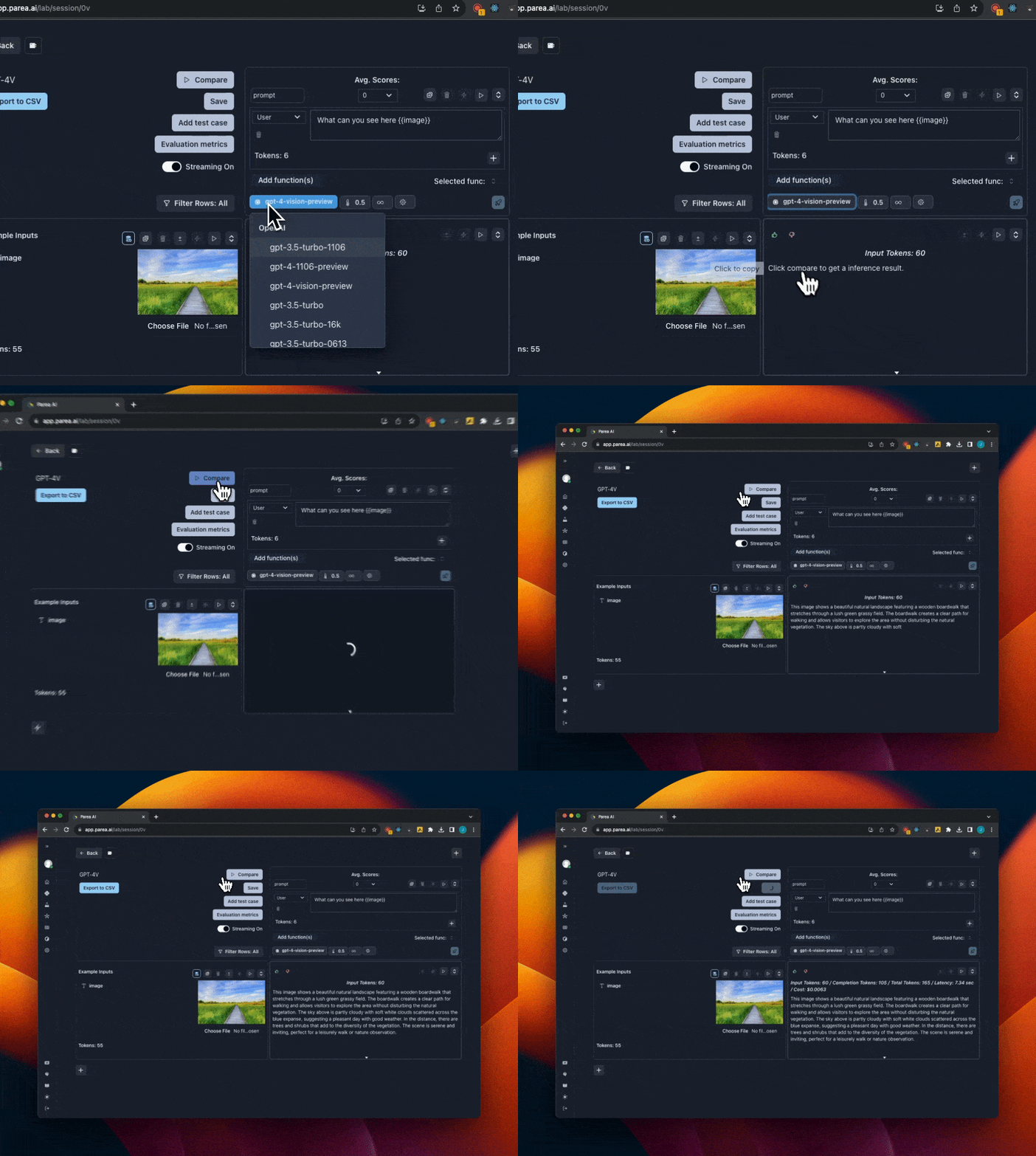
1. First, you must have OpenAI API key set in the [settings](https://app.parea.ai/settings) page. And have access to the GPT-4 Vision model.
2. Then, select `gpt-4-vision-preview` from the model dropdown menu. When you select GPT-4 Vision, the input cell will change to support uploading images.
3. Add a template variable to your prompt to assign to the image. e.g `{{image}}`
4. Click the `image icon` next to the template variable you added to switch to image input mode.
5. Then click `Choose file` to upload an image
The inference section is where you will see the results of the LLM call from the prompt and row intersection.
No matter what model you use, Parea consistently summarizes the tokens, cost, and latency.
For OpenAI models, the perplexity score is also automatically calculated. You can view the logprob highlighting by turning on the Logprobs toggle.
If you have attached an evaluation metric to your session, the evaluation scores will also be displayed.
You can provide a thumbs up/down rating for the inference result in the top left of the component.
## Supported LLM Inference API Provider
We currently support the following LLM inference API providers in the Playground:
* OpenAI
* Anthropic
* Azure
* Anyscale
* AWS Bedrock
* Google Vertex AI
* Mistral
* OpenRouter
* LiteLLM Proxy
## Using GPT-4 Vision
We support experimenting with GPT-4 vision prompts in the Playground. If you already have a Parea account, you can open this [templated session](https://app.parea.ai/lab/session/0v) to get started.
To get started with GPT-4 vision manually:
1. First, you must have OpenAI API key set in the [settings](https://app.parea.ai/settings) page. And have access to the GPT-4 Vision model.
2. Then, select `gpt-4-vision-preview` from the model dropdown menu. When you select GPT-4 Vision, the input cell will change to support uploading images.
3. Add a template variable to your prompt to assign to the image. e.g `{{image}}`
4. Click the `image icon` next to the template variable you added to switch to image input mode.
5. Then click `Choose file` to upload an image
 ## What's next?
Now that you've defined a basic prompt template, we can add more granular functionality.
Add function calling schema to prompt
Use test cases as prompt template inputs
Add pre-defined or custom evaluation metrics
Deployed and access prompt via the SDK
## What's next?
Now that you've defined a basic prompt template, we can add more granular functionality.
Add function calling schema to prompt
Use test cases as prompt template inputs
Add pre-defined or custom evaluation metrics
Deployed and access prompt via the SDK