> ## Documentation Index
> Fetch the complete documentation index at: https://docs.parea.ai/llms.txt
> Use this file to discover all available pages before exploring further.
# Optimize a LangChain RAG App
> Tutorial on improving a Langchain RAG application using Parea's Evals, Tracing, and Playground.
## Overview
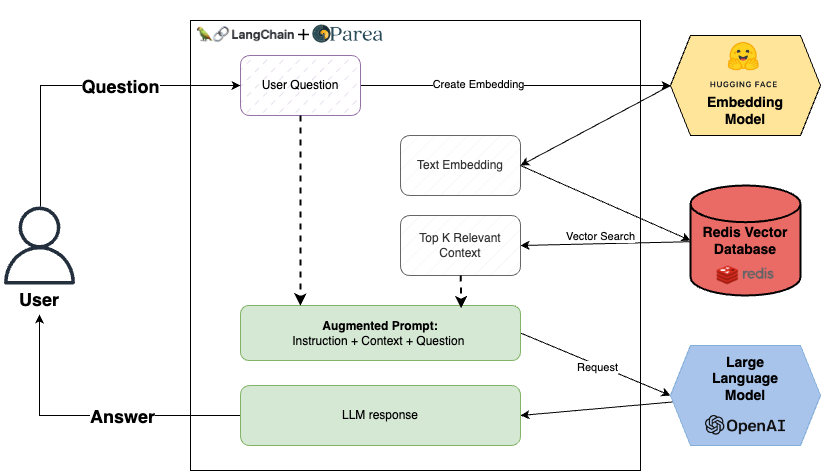
We will start with the Redis-Rag example from Langchain and instrument it with Parea AI. This application lets users chat with public financial PDF documents such as Nike's 10k filings.
**Application components:**
* [UnstructuredFileLoader](https://python.langchain.com/docs/integrations/document_loaders/unstructured_file) to parse the PDF documents into raw text
* [RecursiveCharacterTextSplitter](https://python.langchain.com/docs/modules/data_connection/document_transformers/recursive_text_splitter) to split the text into smaller chunks
* `all-MiniLM-L6-v2` sentence transformer from [HuggingFace](https://huggingface.co/sentence-transformers/all-MiniLM-L6-v2) to embed text chunks into vectors
* [Redis](https://redis.com/solutions/use-cases/vector-database/) as the vector database for real-time context retrieval
* Langchain OpenAI `gpt-3.5-turbo-16k` to generate answers to user queries
* Parea AI for Trace logs, Evaluations, and Playground to iterate on our prompt
 ## Getting Started
First, clone the project repo [here](https://github.com/parea-ai/parea-langchain-rag-redis-tutorial).
If this is your first time using Parea AI's SDK, you'll first need to create an API key. You can create one by visiting the [Settings page](https://app.parea.ai/settings).
Follow the [Readme](https://github.com/parea-ai/parea-langchain-rag-redis-tutorial/blob/main/README.md) to set up your environment variables.
Ensure you have the Redis stack server [installed](https://redis.io/docs/install/install-stack/), then start a local Redis instance with `redis-stack-server.`
Then, install the dependencies with `poetry install.`
## Ingest Documents
Now that our application is ready, we must first ingest our Nike 10k source data. To make this easier, the repo has a helper CLI. You can run the below command in your terminal.
```bash theme={null}
python main.py --ingest-docs
```
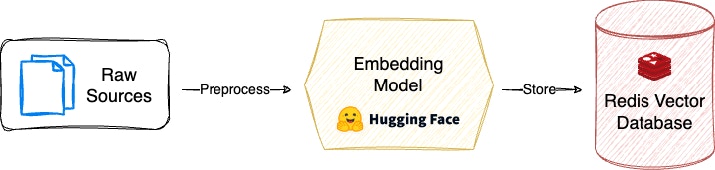
This will run the ingest.py script, which executes the pipeline visualized below.
First, we load the source PDF doc, convert the text into smaller chunks, create text embeddings using a HuggingFace sentence transformer model, and finally load the data into Redis.
## Getting Started
First, clone the project repo [here](https://github.com/parea-ai/parea-langchain-rag-redis-tutorial).
If this is your first time using Parea AI's SDK, you'll first need to create an API key. You can create one by visiting the [Settings page](https://app.parea.ai/settings).
Follow the [Readme](https://github.com/parea-ai/parea-langchain-rag-redis-tutorial/blob/main/README.md) to set up your environment variables.
Ensure you have the Redis stack server [installed](https://redis.io/docs/install/install-stack/), then start a local Redis instance with `redis-stack-server.`
Then, install the dependencies with `poetry install.`
## Ingest Documents
Now that our application is ready, we must first ingest our Nike 10k source data. To make this easier, the repo has a helper CLI. You can run the below command in your terminal.
```bash theme={null}
python main.py --ingest-docs
```
This will run the ingest.py script, which executes the pipeline visualized below.
First, we load the source PDF doc, convert the text into smaller chunks, create text embeddings using a HuggingFace sentence transformer model, and finally load the data into Redis.
 ## Execute the RAG Chain
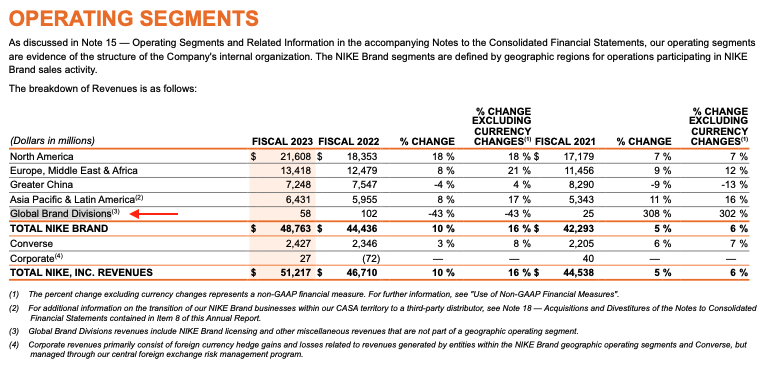
Now that the docs are loaded, we can run our RAG chain. Let's see if our RAG application can understand the Operating Segments table on page 36 of the 10-k.
## Execute the RAG Chain
Now that the docs are loaded, we can run our RAG chain. Let's see if our RAG application can understand the Operating Segments table on page 36 of the 10-k.
 We'll use 3 pre-built evaluation metrics from Parea AI to evaluate our results.
```Python theme={null}
EvalFuncTuple(name="matches_target", func=answer_matches_target_llm_grader_factory())
EvalFuncTuple(name="relevancy", func=context_query_relevancy_factory(context_fields=["context"]))
EvalFuncTuple(name="supported_by_context", func=percent_target_supported_by_context_factory(context_fields=["context"]))
```
[Matches target](https://github.com/parea-ai/parea-sdk-py/blob/main/parea/evals/general/answer_matches_target_llm_grader.py) is a general-purpose LLM eval that checks if the LLM response matches the expected target answer.
Then we have two RAG-specific evaluation metrics, [relevancy](https://github.com/parea-ai/parea-sdk-py/blob/main/parea/evals/rag/context_query_relevancy.py) and [supported by context](https://github.com/parea-ai/parea-sdk-py/blob/main/parea/evals/rag/percent_target_supported_by_context.py) that evaluate our retrieval quality.
* Relevancy quantifies how much the retrieved context relates to the user question.
* Supported by context quantifies how many sentences in the target answer are supported by the retrieved context.
*Learn more about Parea's AutoEvals [here](/blog/eval-metrics-for-llm-apps-in-prod)*
For our starting question, we'll ask, `Which operating segment contributed least to total Nike brand revenue in fiscal 2023?`.
The PDF document shows that the correct answer should be `Global Brand Divisions,` which contributed the least to total brand revenue, with \$58M in F2023.
To run our chain, we can use the CLI command to execute the chain with the default question above:
```bash theme={null}
python main.py --run-eval
```
The response we get is `Converse,` which is not correct. Notice that we also fail our matches target eval with a score of `0.0`.
```bash theme={null}
###Output###
Question: Which operating segment contributed least to total Nike brand revenue in fiscal 2023?
Response: The operating segment that contributed the least to total Nike brand revenue in fiscal 2023 is Converse.
###Eval Results###
NamedEvaluationScore(name='matches_target', score=0.0)
NamedEvaluationScore(name='relevancy', score=0.01)
NamedEvaluationScore(name='supported_by_context', score=1.0)
# The last segment of the URL is the parent trace ID. This will be different for you
View trace at: https://app.parea.ai/logs/detailed/48e6c7fc-1f73-4734-8d1e-64c7e78112bc
```
In the output, you will get a link to the detailed trace log for our chain, including the eval scores. By visiting the link, we can see our detailed trace logs.
We'll use 3 pre-built evaluation metrics from Parea AI to evaluate our results.
```Python theme={null}
EvalFuncTuple(name="matches_target", func=answer_matches_target_llm_grader_factory())
EvalFuncTuple(name="relevancy", func=context_query_relevancy_factory(context_fields=["context"]))
EvalFuncTuple(name="supported_by_context", func=percent_target_supported_by_context_factory(context_fields=["context"]))
```
[Matches target](https://github.com/parea-ai/parea-sdk-py/blob/main/parea/evals/general/answer_matches_target_llm_grader.py) is a general-purpose LLM eval that checks if the LLM response matches the expected target answer.
Then we have two RAG-specific evaluation metrics, [relevancy](https://github.com/parea-ai/parea-sdk-py/blob/main/parea/evals/rag/context_query_relevancy.py) and [supported by context](https://github.com/parea-ai/parea-sdk-py/blob/main/parea/evals/rag/percent_target_supported_by_context.py) that evaluate our retrieval quality.
* Relevancy quantifies how much the retrieved context relates to the user question.
* Supported by context quantifies how many sentences in the target answer are supported by the retrieved context.
*Learn more about Parea's AutoEvals [here](/blog/eval-metrics-for-llm-apps-in-prod)*
For our starting question, we'll ask, `Which operating segment contributed least to total Nike brand revenue in fiscal 2023?`.
The PDF document shows that the correct answer should be `Global Brand Divisions,` which contributed the least to total brand revenue, with \$58M in F2023.
To run our chain, we can use the CLI command to execute the chain with the default question above:
```bash theme={null}
python main.py --run-eval
```
The response we get is `Converse,` which is not correct. Notice that we also fail our matches target eval with a score of `0.0`.
```bash theme={null}
###Output###
Question: Which operating segment contributed least to total Nike brand revenue in fiscal 2023?
Response: The operating segment that contributed the least to total Nike brand revenue in fiscal 2023 is Converse.
###Eval Results###
NamedEvaluationScore(name='matches_target', score=0.0)
NamedEvaluationScore(name='relevancy', score=0.01)
NamedEvaluationScore(name='supported_by_context', score=1.0)
# The last segment of the URL is the parent trace ID. This will be different for you
View trace at: https://app.parea.ai/logs/detailed/48e6c7fc-1f73-4734-8d1e-64c7e78112bc
```
In the output, you will get a link to the detailed trace log for our chain, including the eval scores. By visiting the link, we can see our detailed trace logs.
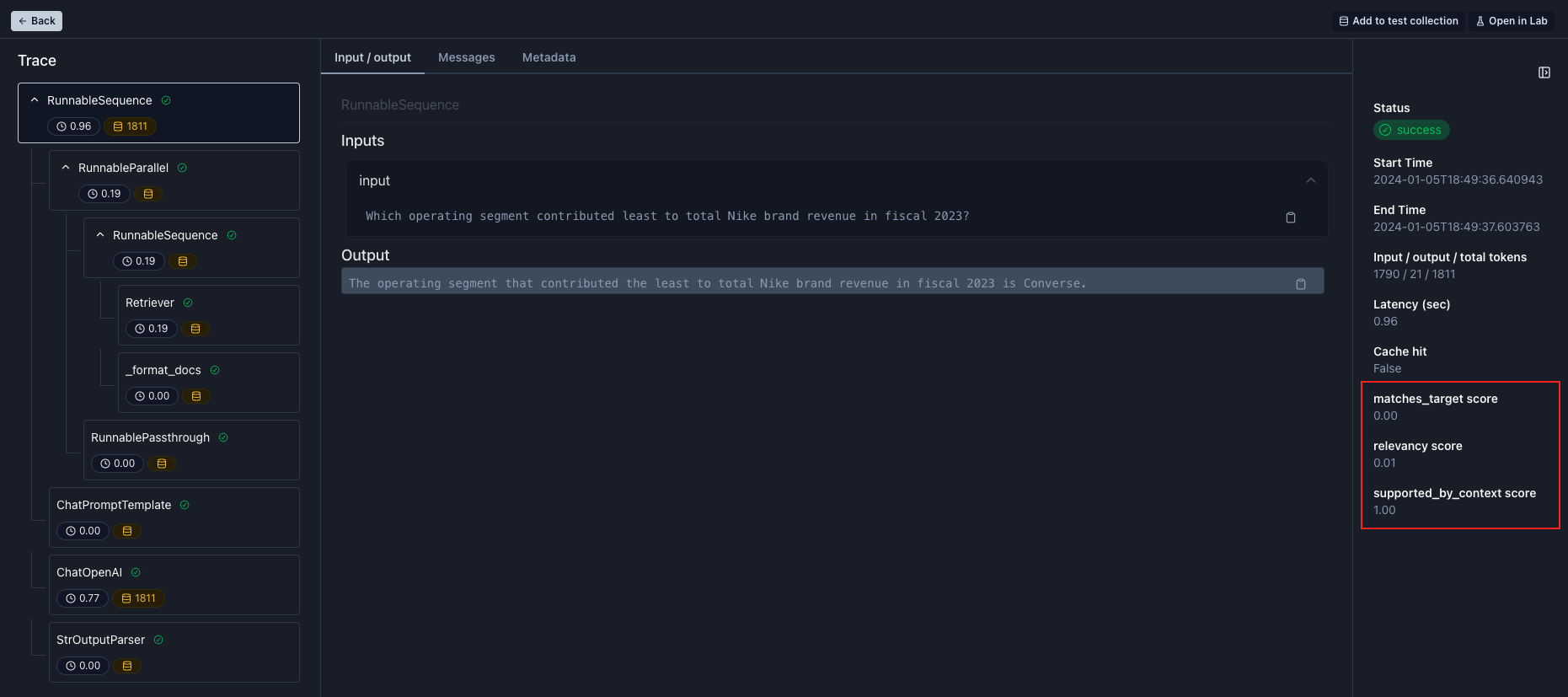 First, look at the Retriever trace to view the context and see if the correct information was retrieved.
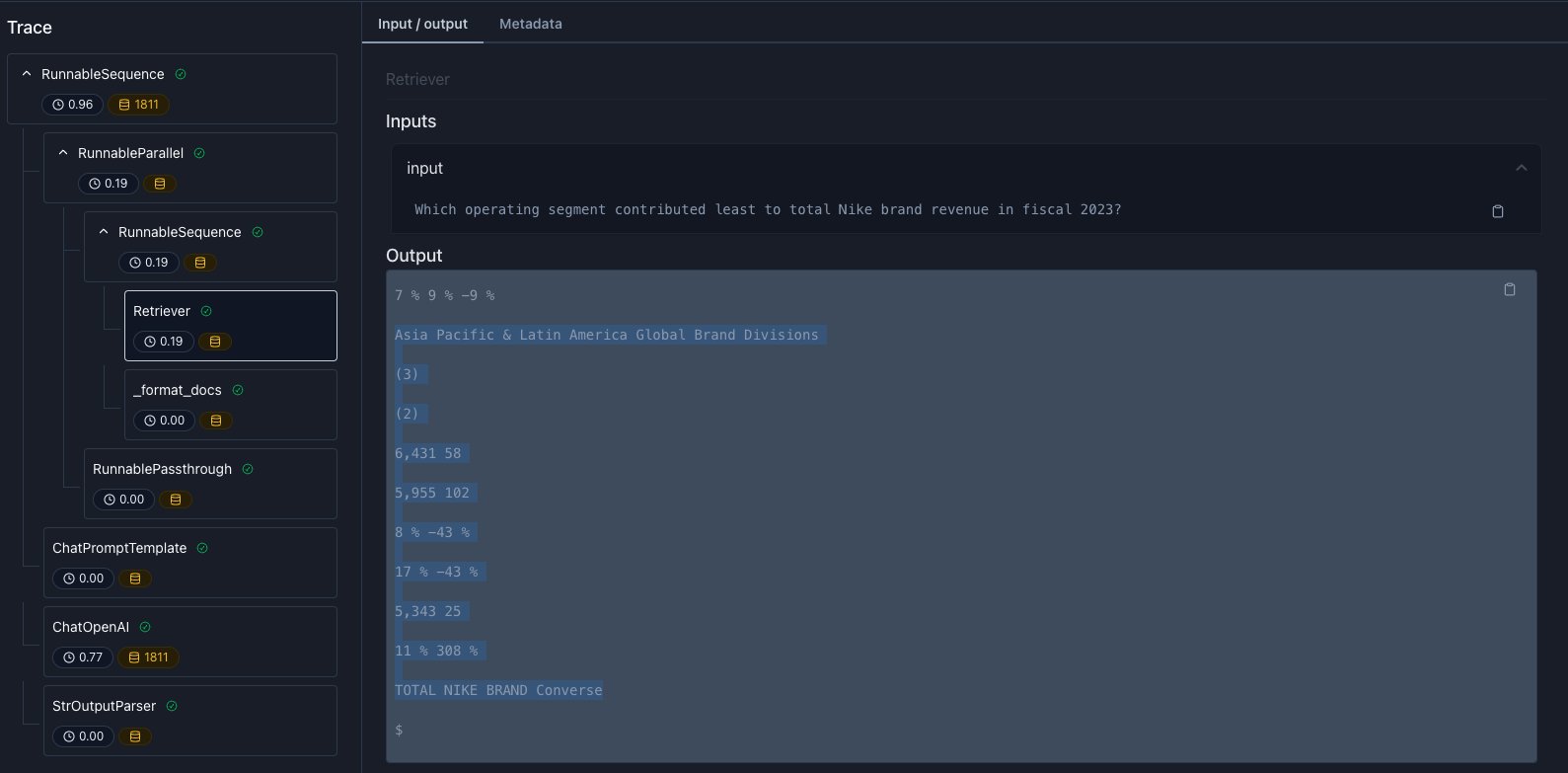 Based on the context, we can realize two things:
* Table parsing is likely hard to interpret, and
* the segment `Converse` comes right after the subtotal `TOTAL NIKE BRAND` followed by a trailing dollar sign (`$`)
Maybe the LLM thought Converse was \$0 and part of the subtotal?
## Prompt Engineering to improve results
### Add to test collection
To experiment with our prompt and context, we can add this example to a dataset by clicking the `Add to test collection` button in the top right.
Later, we can use this test case to iterate on our prompt in the playground.
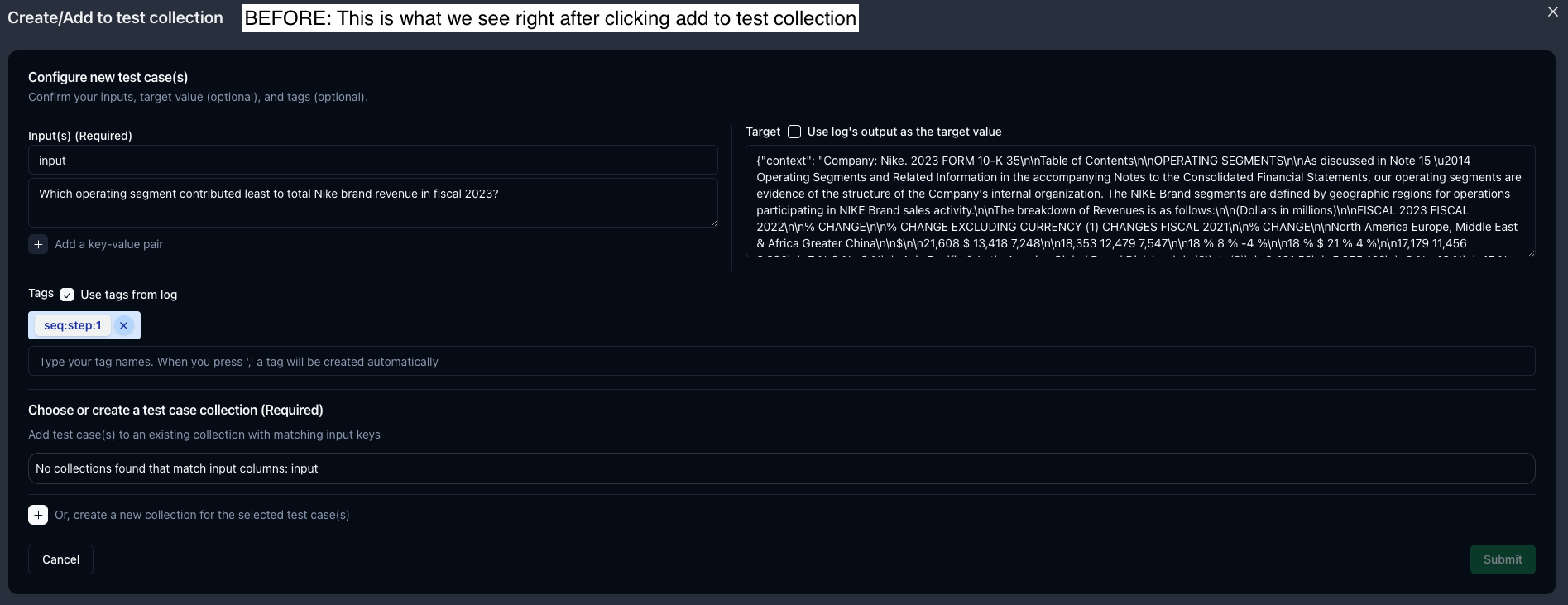
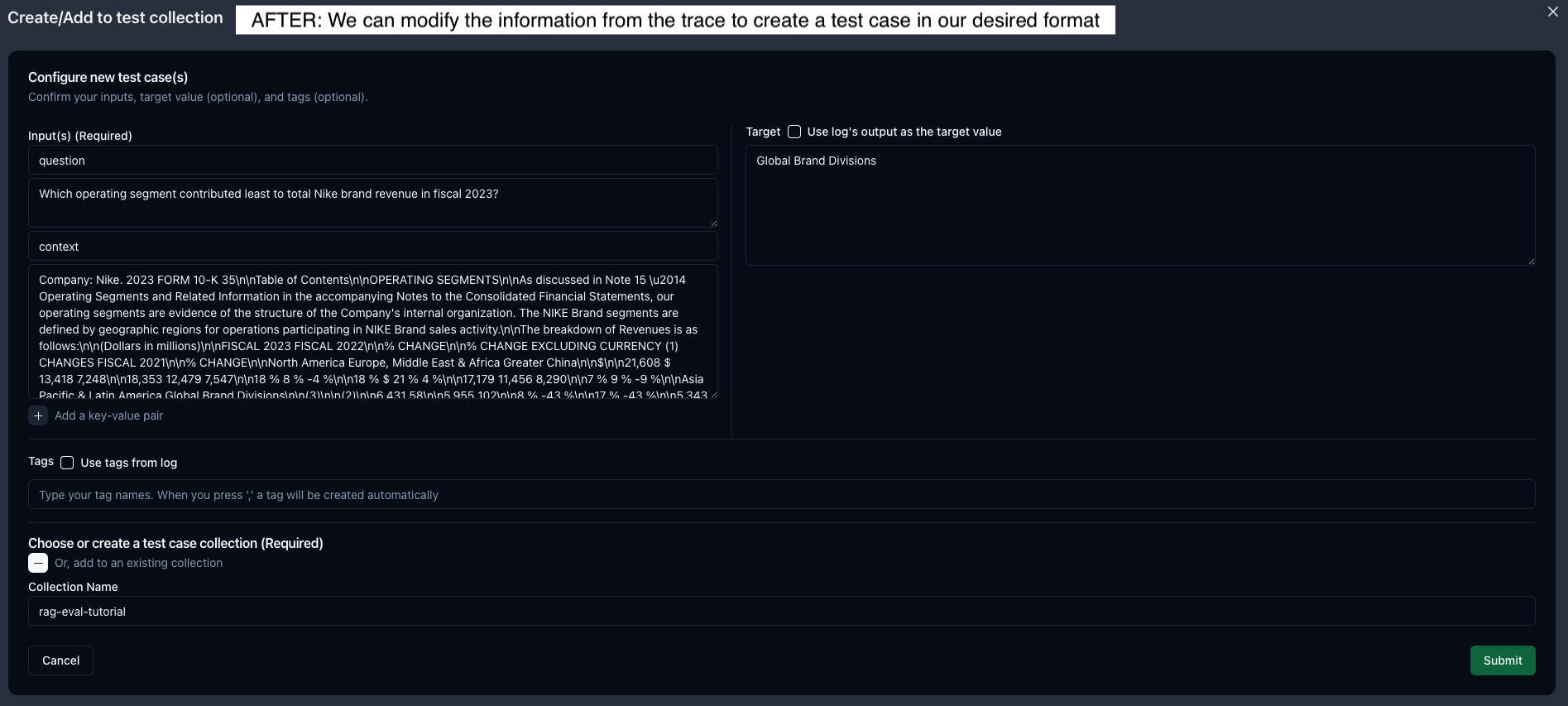
The Add to test collection modal is very flexible; it pulls in the inputs, output, and tags from our selected trace and allows us to edit the information as needed.
* First, we'll click the `RunnableParallel` trace, then click `Add to test collection.` This trace is helpful because it has both our input question and the retrieved context.
* Second, let's change the name from `input` to `question` and add a new k/v pair for the `context,` using the original output value.
* Third, we can set our target answer to `Global Brand Divisions.`
* Finally, we'll click the `+` to create a new test collection by providing a name and then submitting.
Based on the context, we can realize two things:
* Table parsing is likely hard to interpret, and
* the segment `Converse` comes right after the subtotal `TOTAL NIKE BRAND` followed by a trailing dollar sign (`$`)
Maybe the LLM thought Converse was \$0 and part of the subtotal?
## Prompt Engineering to improve results
### Add to test collection
To experiment with our prompt and context, we can add this example to a dataset by clicking the `Add to test collection` button in the top right.
Later, we can use this test case to iterate on our prompt in the playground.
The Add to test collection modal is very flexible; it pulls in the inputs, output, and tags from our selected trace and allows us to edit the information as needed.
* First, we'll click the `RunnableParallel` trace, then click `Add to test collection.` This trace is helpful because it has both our input question and the retrieved context.
* Second, let's change the name from `input` to `question` and add a new k/v pair for the `context,` using the original output value.
* Third, we can set our target answer to `Global Brand Divisions.`
* Finally, we'll click the `+` to create a new test collection by providing a name and then submitting.
 ### Evaluations - Create an eval metric
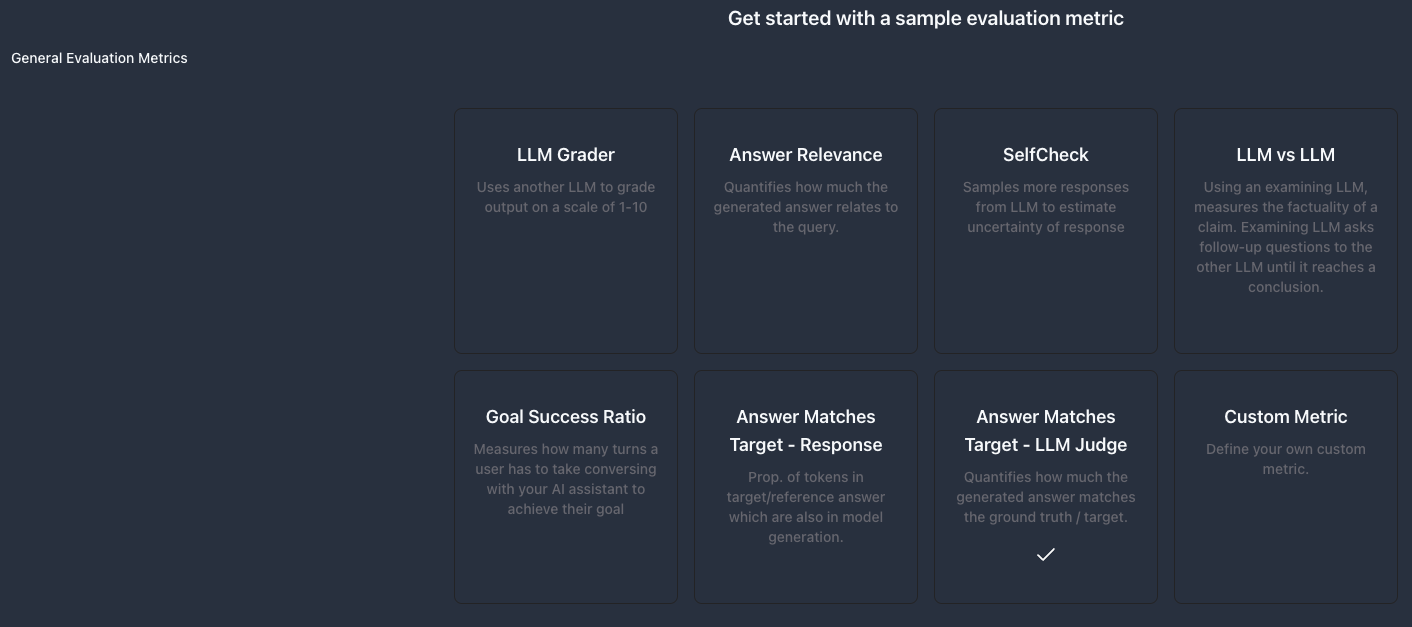
All of Parea's AutoEvals are also available in the app. Go to the [Evaluations](https://app.parea.ai/evaluations) and choose `create function eval.` We'll only select the match target eval for demo purposes. Under the `General Evaluation Metrics` section, select `Answer Matches Target - LLM Judge.`
No changes are needed because we named our input field `question.` in the test collection setup, so we can click `create metric` and then proceed to the [Playground](https://app.parea.ai/playground).
### Evaluations - Create an eval metric
All of Parea's AutoEvals are also available in the app. Go to the [Evaluations](https://app.parea.ai/evaluations) and choose `create function eval.` We'll only select the match target eval for demo purposes. Under the `General Evaluation Metrics` section, select `Answer Matches Target - LLM Judge.`
No changes are needed because we named our input field `question.` in the test collection setup, so we can click `create metric` and then proceed to the [Playground](https://app.parea.ai/playground).
 ### Playground
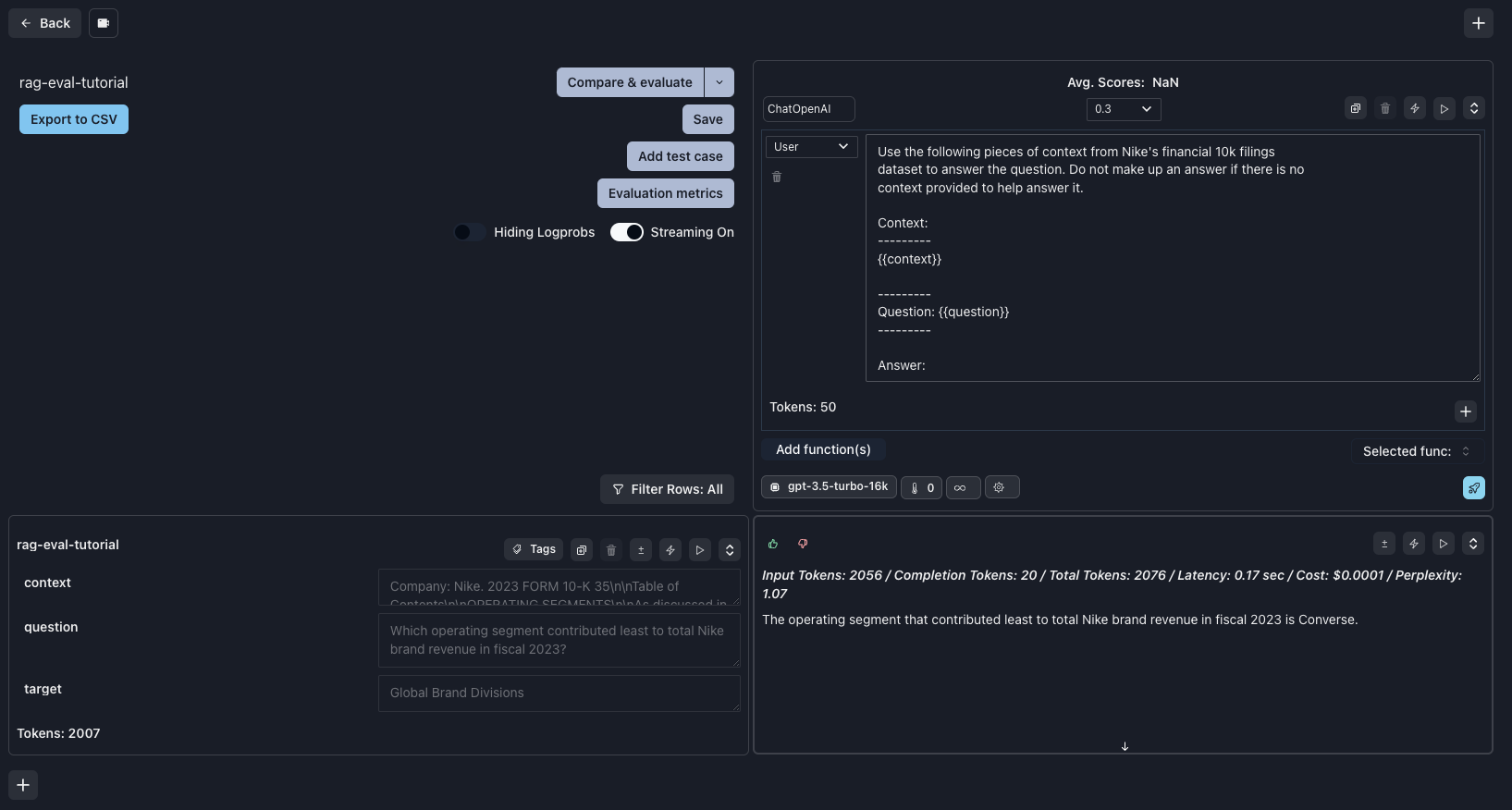
Since our prompt is simple, we can go to the Playground and click create a new session. An alternative would be to revisit our trace log and click `Open in Lab` on the `ChatOpenAI` trace, which includes the LLM messages.
* First, paste in our Chat template from [here](https://github.com/parea-ai/parea-langchain-rag-redis-tutorial/blob/main/rag/chain.py#L58-L72) and format it to use double curly braces (`{{}}`) for template variables `question` and `context,` and select the `gpt-3.5-turbo-16k` model.
```text Prompt theme={null}
Use the following pieces of context from Nike's financial 10k filings
dataset to answer the question. Do not make up an answer if no context is provided to help answer it.
Context:
---------
{{context}}
---------
Question: {{question}}
---------
Answer:
```
* Second, click `Add test case` and import our created test case.
* Third, click `Evaluation metrics` and select the new eval we created.
* Now, we are ready to iterate on our prompt to improve the result. If we do not change the prompt and click `Compare,` we will see the same response as in our IDE.
### Playground
Since our prompt is simple, we can go to the Playground and click create a new session. An alternative would be to revisit our trace log and click `Open in Lab` on the `ChatOpenAI` trace, which includes the LLM messages.
* First, paste in our Chat template from [here](https://github.com/parea-ai/parea-langchain-rag-redis-tutorial/blob/main/rag/chain.py#L58-L72) and format it to use double curly braces (`{{}}`) for template variables `question` and `context,` and select the `gpt-3.5-turbo-16k` model.
```text Prompt theme={null}
Use the following pieces of context from Nike's financial 10k filings
dataset to answer the question. Do not make up an answer if no context is provided to help answer it.
Context:
---------
{{context}}
---------
Question: {{question}}
---------
Answer:
```
* Second, click `Add test case` and import our created test case.
* Third, click `Evaluation metrics` and select the new eval we created.
* Now, we are ready to iterate on our prompt to improve the result. If we do not change the prompt and click `Compare,` we will see the same response as in our IDE.
 ### Prompt Iteration
At first, I considered adding additional information to the prompt, clarifying that the context is financial data with tables. However, this prompt must be generalizable to user questions that don't retrieve tables.
So, instead, let's try the tried-and-true `Chain of Thought` prompt: `Think step by step.` We can add this as our initial user message.
### Prompt Iteration
At first, I considered adding additional information to the prompt, clarifying that the context is financial data with tables. However, this prompt must be generalizable to user questions that don't retrieve tables.
So, instead, let's try the tried-and-true `Chain of Thought` prompt: `Think step by step.` We can add this as our initial user message.
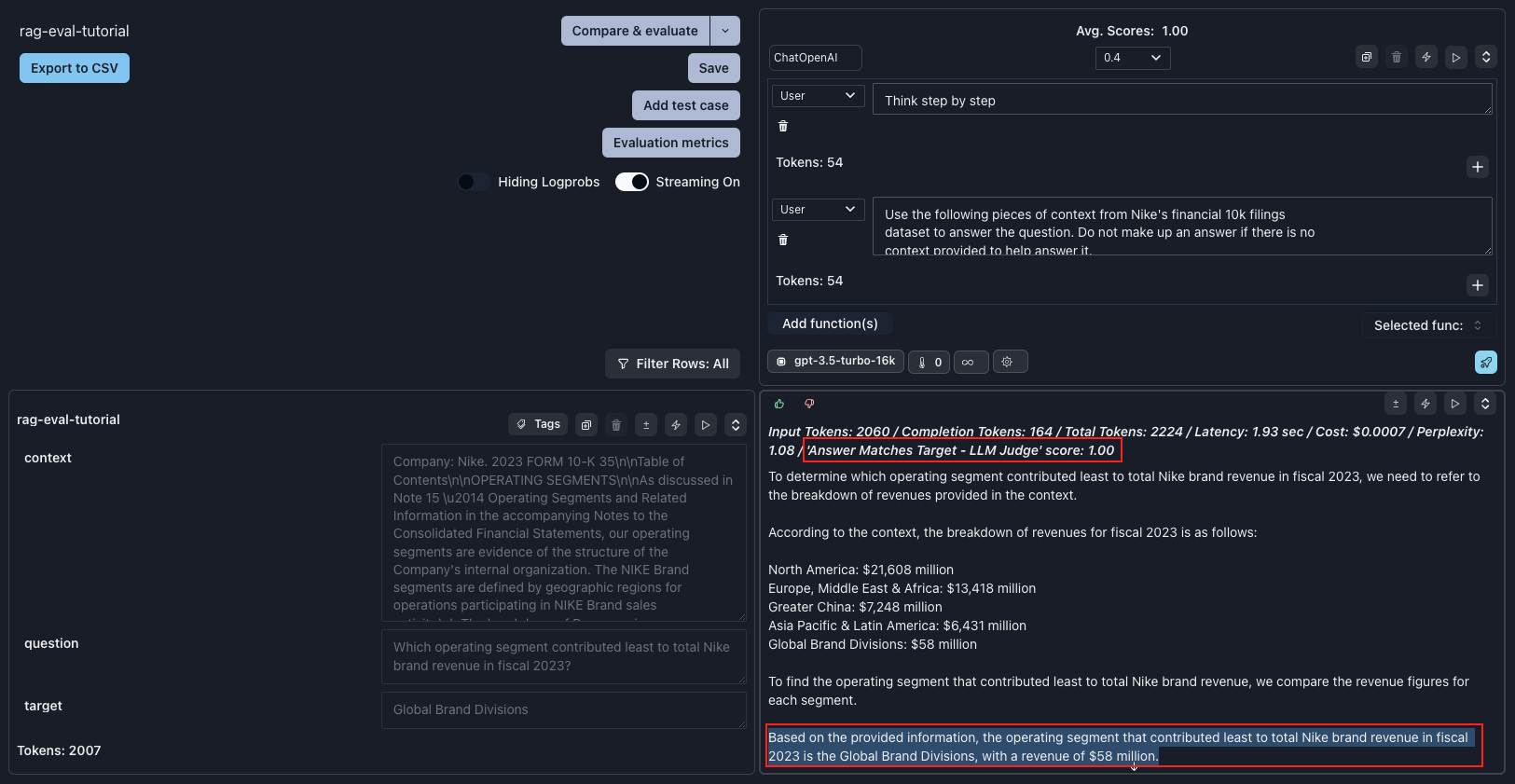 After making that change and rerunning the prompt, the model correctly interprets the table context and arrives at the correct answer. Our Eval metric is computed, and our new score is `1.0`.
🎉Congratulations, it works!🎉 Now, we can copy this prompt back into our application and continue building.
## Conclusion
This tutorial demonstrated using Parea AI's Evals, Tracing, and Playground to improve our RAG application.
We started with a simple RAG chain, used evaluation metrics and trace Logs to identify an incorrect answer, and finally used the UI to quickly iterate on our problem case until we found a solution.
With Parea, we can move seamlessly from our application code to the app UI and dig deeper into problematic chains. Parea works seamlessly with Langchain and provides helpful out-of-the-box evaluation metrics based on SOTA research.
Remember, this is just the beginning; there is so much more you can do with Parea to continuously improve and monitor your applications. Have fun exploring!
All the code for this project is available at [https://github.com/parea-ai/parea-langchain-rag-redis-tutorial](https://github.com/parea-ai/parea-langchain-rag-redis-tutorial).
After making that change and rerunning the prompt, the model correctly interprets the table context and arrives at the correct answer. Our Eval metric is computed, and our new score is `1.0`.
🎉Congratulations, it works!🎉 Now, we can copy this prompt back into our application and continue building.
## Conclusion
This tutorial demonstrated using Parea AI's Evals, Tracing, and Playground to improve our RAG application.
We started with a simple RAG chain, used evaluation metrics and trace Logs to identify an incorrect answer, and finally used the UI to quickly iterate on our problem case until we found a solution.
With Parea, we can move seamlessly from our application code to the app UI and dig deeper into problematic chains. Parea works seamlessly with Langchain and provides helpful out-of-the-box evaluation metrics based on SOTA research.
Remember, this is just the beginning; there is so much more you can do with Parea to continuously improve and monitor your applications. Have fun exploring!
All the code for this project is available at [https://github.com/parea-ai/parea-langchain-rag-redis-tutorial](https://github.com/parea-ai/parea-langchain-rag-redis-tutorial).